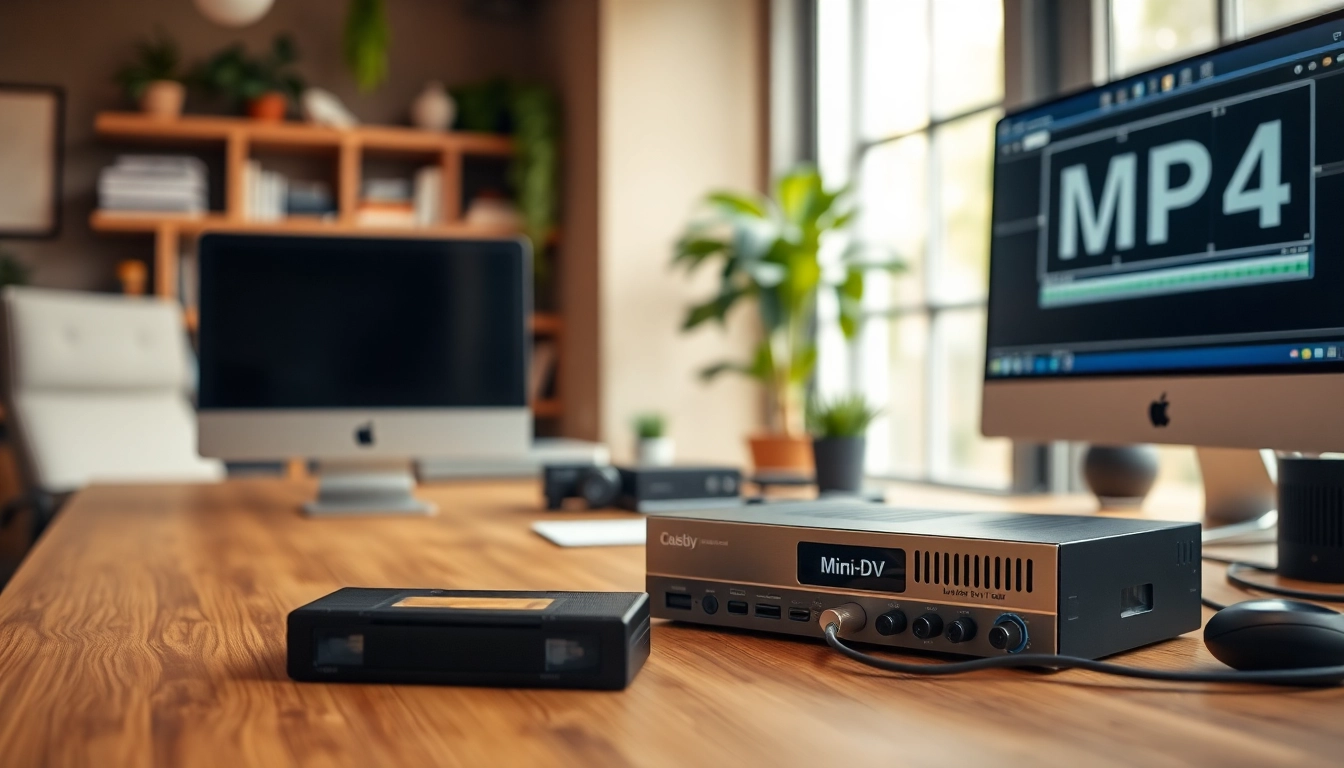
Understanding Mini DV and Its Importance
In the realm of video recording technology, Mini DV cassette tapes have carved a niche for themselves. These compact tapes were favored in the late 90s and early 2000s for their ability to deliver high-quality video at a relatively low price. Understanding Mini DV is crucial, especially considering the growing need to preserve memories stored on these tapes. As technology evolves, converting Mini DV to MP4 has become essential for those looking to archive their precious recordings efficiently. This conversion not only helps to prevent potential loss due to tape degradation but also provides accessibility across various platforms and devices. For anyone interested in the transition from Mini DV to digital, the mini dv to MP4 process is vital.
What is Mini DV?
Mini DV, short for Mini Digital Video, is a digital recording format introduced in 1995. Much smaller than its predecessors, Mini DV tapes measure approximately 6.5 cm x 10.5 cm, making them highly portable. The tapes use a magnetic tape to store video in a digital format, allowing for relatively high-quality recording, with standard video resolution of 720x480 pixels. When these tapes were predominantly used in camcorders, they provided consumers with a viable option to record home videos without sacrificing quality.
Why Convert Mini DV to MP4?
With the rapid evolution of technology, Mini DV tapes can become obsolete as playback devices are phased out. Converting Mini DV to MP4 ensures that video files are preserved in a more widely compatible format. MP4 is recognized universally across devices, making it ideal for applications ranging from online streaming to sharing with friends and family. Furthermore, digital files are easier to manage and store than physical tapes, which can deteriorate over time.
Key Advantages of Digital Formats
Digital video formats, such as MP4, provide numerous advantages over analog formats like Mini DV tapes. Key benefits include:
- Accessibility: MP4 files can be played on virtually any modern device, including smartphones, tablets, and computers.
- Storage Efficiency: MP4 files are compressed, allowing for efficient storage without significantly compromising quality.
- Editability: Digital video provides easier editing options, letting users create sophisticated video projects with ease.
- Sharing Capabilities: MP4 is the standard for online sharing, making it a perfect fit for social media and video platforms.
Preparation for Conversion
Essential Equipment Needed
Before embarking on the conversion process, it's crucial to gather the appropriate equipment. Essential tools include:
- Mini DV Camcorder: This is necessary for playing back the tapes.
- FireWire or USB Capture Device: You’ll need a way to connect the camcorder to your computer.
- Video Capture Software: Software such as Adobe Premiere Pro, Final Cut Pro, or dedicated capture utilities can facilitate the conversion process.
- Computer: A reliable computer with sufficient storage space and processing power will help streamline the conversion.
File Organization Before Conversion
Organizing your files before starting the conversion can significantly simplify the process. Consider creating a folder structure on your computer dedicated to the Mini DV videos. Here are steps to follow:
- Create a main folder titled "Mini DV Conversions".
- Within this main folder, create subfolders for different tapes or events.
- Label subfolders clearly (e.g., “Family Vacation 2001”) to easily locate and keep track of your files.
Checking Tape Conditions
Before conversion, inspect your Mini DV tapes for any signs of damage. Check the housing for cracks or breaks and look for mold or dust on the tape. If there are any issues, consider cleaning the tapes or seeking professional help, as playing damaged tapes can lead to further deterioration. Evaluating the condition not only ensures the safety of your recordings but also maximizes the quality of the resulting MP4 files.
Step-by-Step Guide to Converting Mini DV to MP4
Setting Up Your Equipment
Setting up your equipment correctly is crucial for successful conversion. Here's how to do it:
- Connect the Mini DV camcorder to your computer using the FireWire or USB capture device.
- Download and install your chosen video capture software.
- Ensure all cables are securely connected and the camcorder is set to playback mode.
- Open the video capture software and select the camcorder as the source.
Using Conversion Software
After setting up, the next step is to use the conversion software effectively. Generally, the steps involve:
- Start a new project within the software and select the “Capture” option.
- Choose the settings compatible with MP4 format.
- Play the Mini DV tape, and the software should automatically capture the video.
- Once the video is captured, save it in your organized folder as an MP4 file.
Finalizing the MP4 File
Once the capture process is complete, take a moment to finalize the MP4 file. This typically involves:
- Checking the video quality and ensuring it meets your expectations.
- Editing the file if necessary, such as trimming unwanted footage or adding titles.
- Exporting the edited video in MP4 format, ensuring the file is saved in the appropriate folder.
Troubleshooting Common Issues
Handling Tape Damage
Should you encounter damaged tapes, start by gently cleaning the tape head of your camcorder with a specialized cleaning tape. Avoid using regular cleaning tools, which can cause further damage. In some cases, consider consulting a professional service to recover valuable footage from severely damaged tapes.
Software Errors During Conversion
If you experience software errors during the conversion, ensure you're using updated software compatible with your operating system. Restart the software and try reconnecting the camcorder. If issues persist, consult the help documentation or support forums of your software for specific error messages.
Ensuring Quality Output
To ensure quality output, always review the MP4 file by playing it back on various devices. Check for consistent audio and video synchronization, and that there are no glitches or artifacts. If problems arise, revisit the capture process to adjust settings or re-capture the footage.
Preserving Your Digital Memories
Storage Options for MP4 Files
After successful conversion, consider various storage options for your MP4 files:
- External Hard Drives: Great for larger capacities, ideal for extensive collections.
- Cloud Storage: Options like Google Drive, Dropbox, or dedicated video storage services offer accessibility and added security.
- NAS Devices: Network-attached storage allows easy access for multiple users across devices.
Sharing Your Converted Videos
Sharing your converted MP4 videos has never been easier. Consider uploading them to popular platforms such as YouTube or Vimeo for wider reach. For private sharing, use services like Google Photos or simply share files directly through email or file-sharing apps. Ensure you maintain quality by choosing the correct settings during upload.
Backup Strategies to Consider
Implementing a robust backup strategy is essential to safeguard your digital memories. Here are a few strategies:
- Use a 3-2-1 backup approach: Keep three copies of your data on two different media types, with one copy off-site.
- Regularly update backups to capture new content and changes.
- Schedule periodic checks on your backups for data integrity verification.
FAQs
What is the duration of Mini DV tapes?
Mini DV tapes typically hold about 60 to 90 minutes of video, depending on the recording mode used during filming.
Can I convert Mini DV to MP4 without a camcorder?
While it's typically necessary to have a camcorder for playback, some professional services offer conversion without your original equipment.
Is there any quality loss during conversion?
When properly executed, conversion from Mini DV to MP4 can preserve the original video quality. However, poor settings might lead to quality degradation.
How much storage space do MP4 videos require?
MP4 videos are relatively compact; a one-minute video can take around 10 to 20 MB, depending on resolution and bitrate settings used during conversion.
Do I need special software to capture video from Mini DV?
Yes, specialized video capture software is required to facilitate the transfer from Mini DV to MP4 and ensure optimal performance during the process.